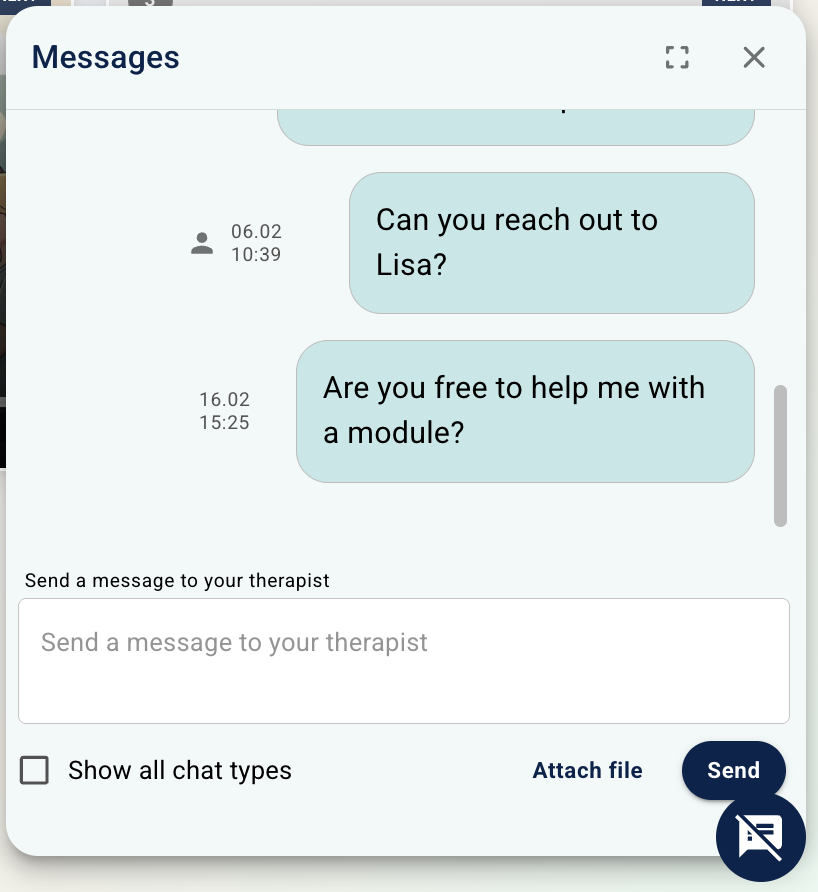
The Messages tool allows patients to communicate with their therapist directly, enabling them to ask questions, provide updates and answer any queries from their clinician. This tool may be deactivated for some programmes.
In 2026 we have released a new patient application design. Some will adopt the new design while others may retain the existing design. We refer to both designs in this article so that it is possible to see how the same functionality appears in both versions.
Messages Tab
Navigating to Messages in the header menu or hamburger menu will take the patient to a view as displayed below.
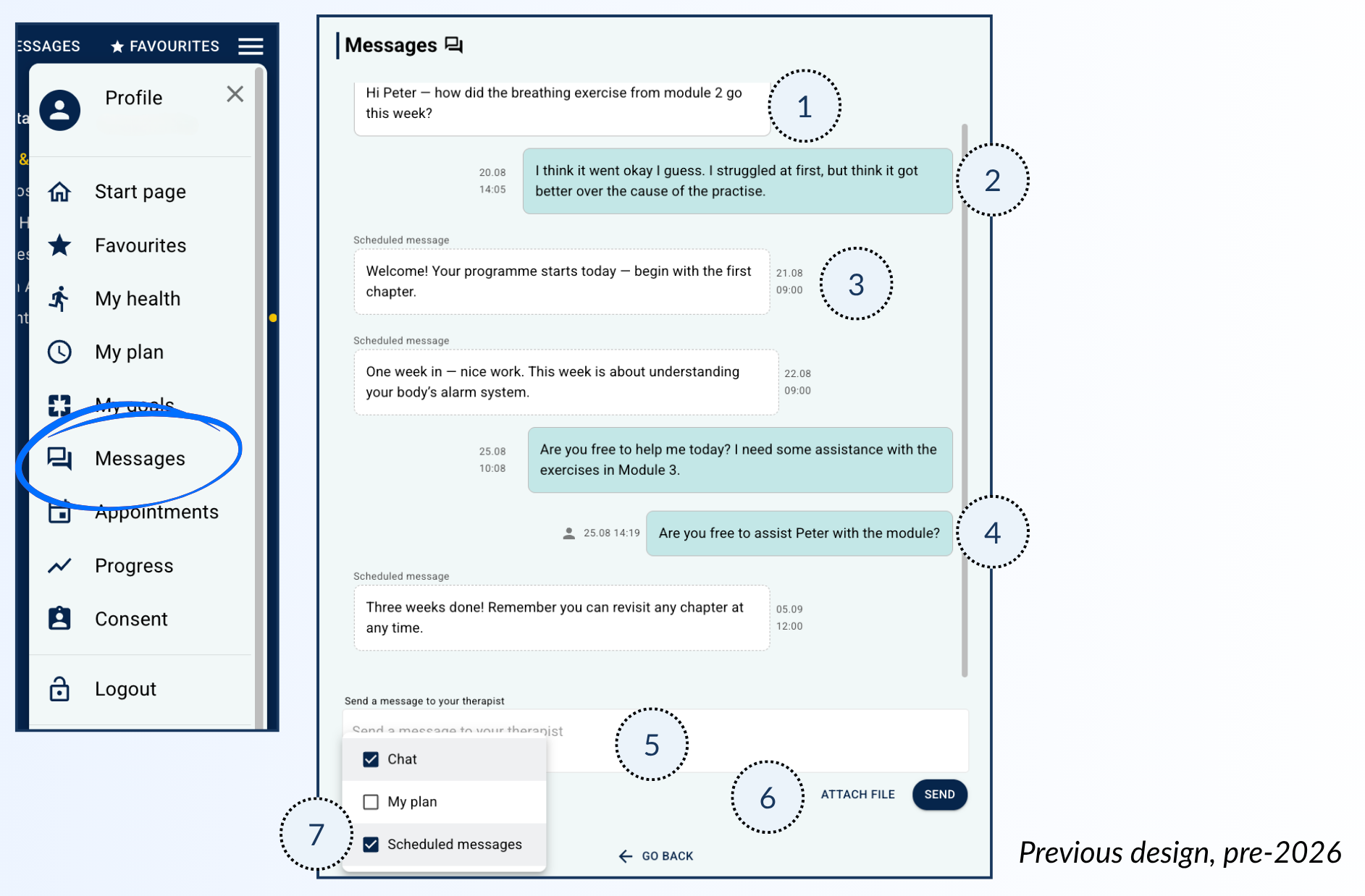
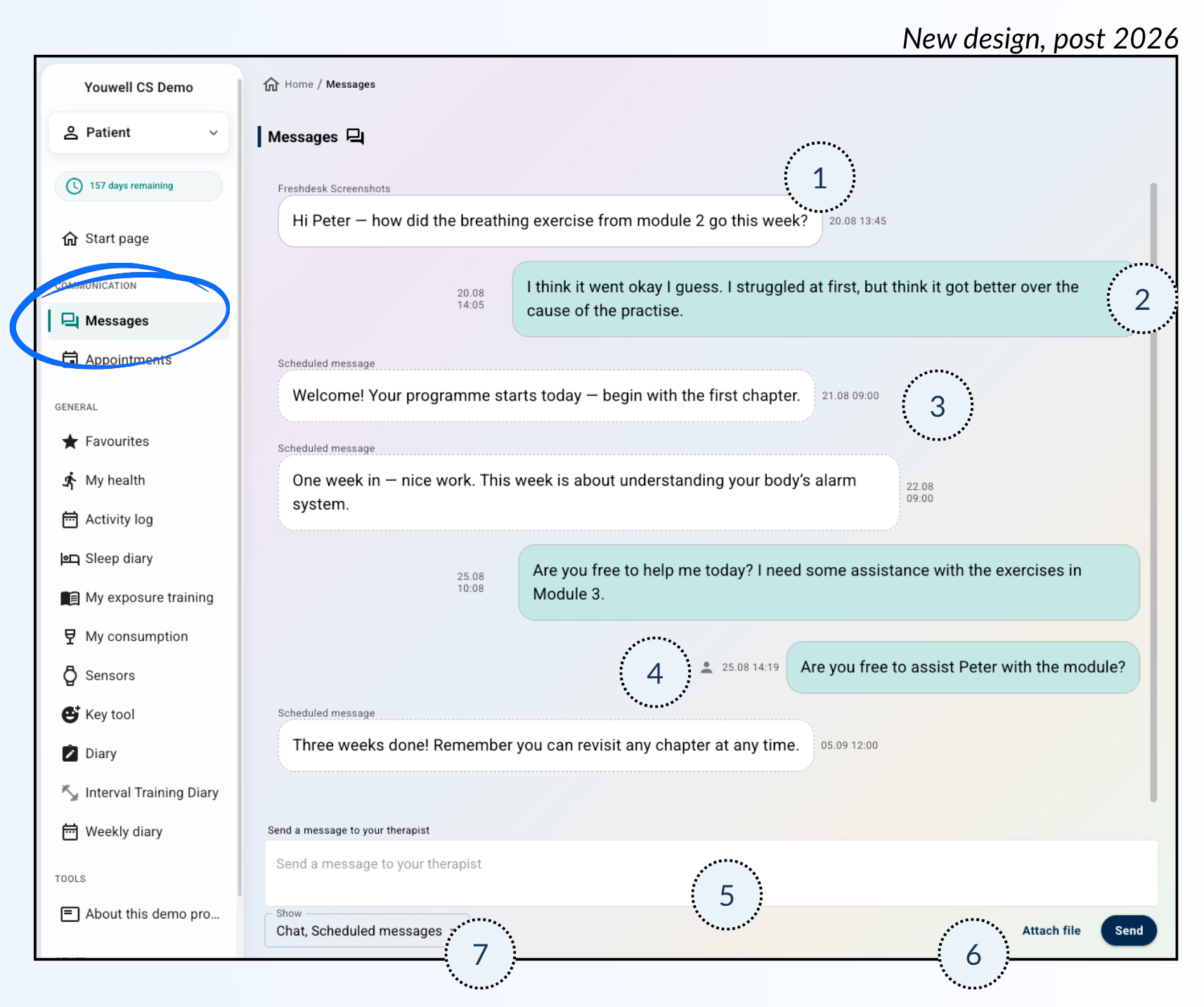
1) Message from therapist
The patient will see messages from their clinician clearly marked in this view. The clinician name will be included (which is useful if there are multiple therapists assisting the same patient), and a timestamp for the message. Messages from therapsits can include rich text, meaning headers, images, links, bullet points etc., as well as attachments.
2) Message from the patient
Messages which the patient has sent will be marked, also with a timestamp for sending.
3) Scheduled message
Any automated messages delivered as a part of the programme or programme profile settings will be marked as such, and can be filtered out of the view if desired (see part 7).
4) Message from a relation
If a relation has access in the patient application, and they have permission to send messages, their messages will also be visible here. You will notice, however, that the message is marked with a person-icon which indicates that this has been sent by a relation. Hovering over the icon will show the name of the relation in question.
Read more about Relations here: Patient Page: Relations.
5) Send a message
This is where the patient can write their message to the therapist. Once the message is ready, they can use Send to deliver it.
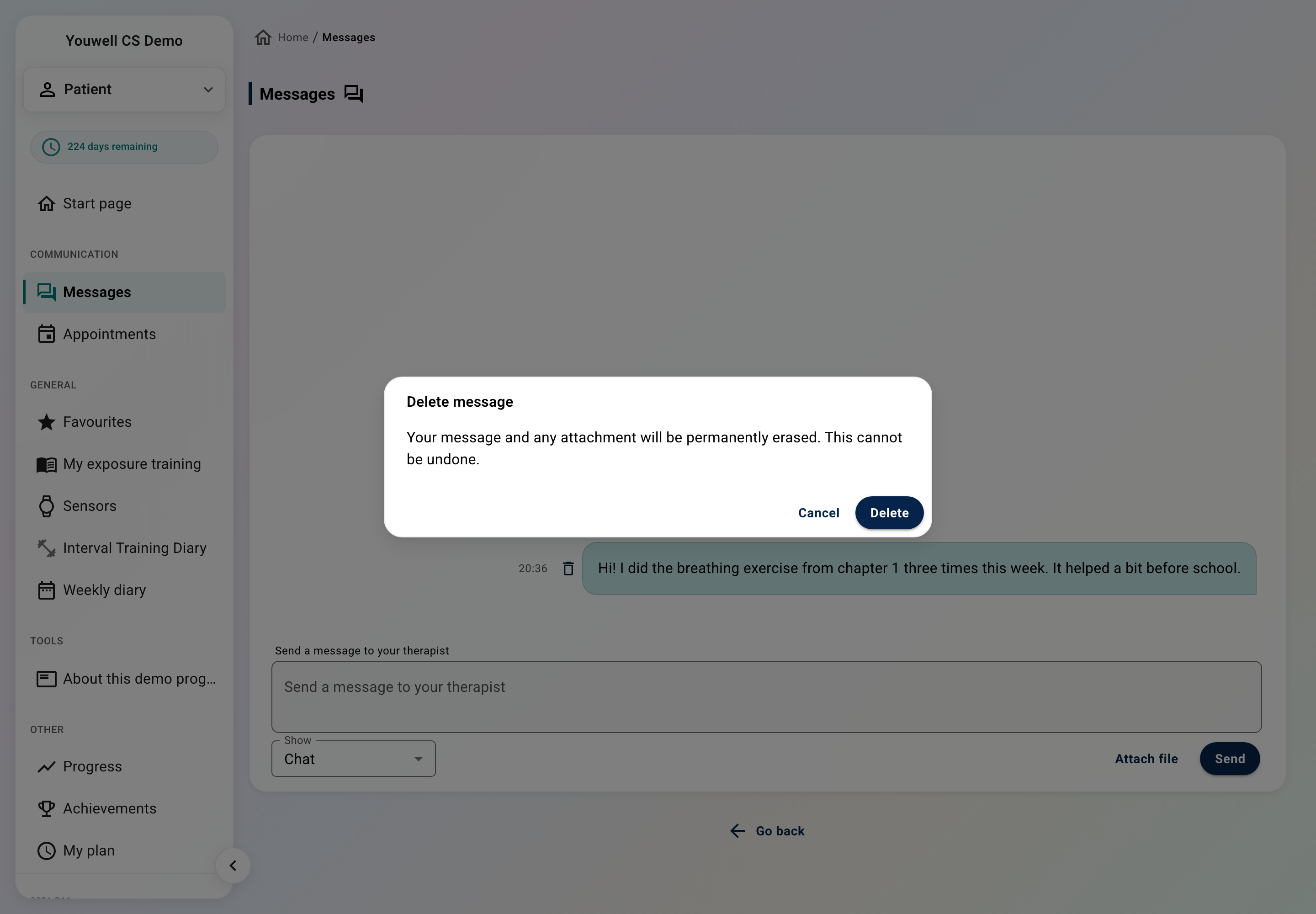
If the organisation allows it, the patient can also delete a message they have sent, using the bin icon (Delete message) next to it. The patient is asked to confirm, because the message and any attachment are permanently erased. A relation can only delete messages they wrote themselves. Deleted messages, whoever deleted them, are shown as Message deleted.

You can read more in Patient Page: Messages.
6) Attach file
It is possible to add attachments to a message. This may be useful if the patient wants to send additional documents or images to the therapist as part of their message. This is possible unless attachments have been turned off for the organisation, programme, programme profile or patient (the setting Turn off attachments in messages).
7) Show chat types
This menu allows the patient to filter out which types of messages they want to view, e.g. if they want to hide the automated scheduled messages and just see those directly from their therapist. If the My Plan feature is in use in the programme too, any comments on actions or goals to be displayed in this messages view, and the patient can choose to display or hide them here.
Messages Chat Pop-up
In addition to the Messages tab outlined above, a popup window may be found in the patient application which allows for quick access to messages. A speech bubble icon in the bottom righthand corner provides a popup chat window which can be used whilst the patient is working in other areas of the application.