
CONTENTS
What are user groups
User groups are reusable groups of therapists (or other staff users). A user group can be used in two ways:
- To give a team access to a patient. A group can be selected in the patient's Therapists field, on the patient's profile or when the patient is created.
- To schedule appointments for a team. A group can be selected as a single resource when scheduling appointments.
User groups on a patient
When a user group is linked to a patient, every member of the group gets the same access to the patient as a therapist connected individually. Group members count as the patient's therapists throughout the platform, including in patient lists, notifications and exports. Changes to the group's membership take effect immediately: a new member gets access straight away, and a removed member loses it.
Only members with an active therapist, content creator, Mercantile or administrator role in the organisation get access through the group, and only if the restriction register does not block them. External therapists do not get access to a patient through a group.
When a group gives access, the patient no longer needs an individually connected therapist, and the message that a patient must have at least one connected therapist is not shown.
You can read more in Create a new patient.
User groups in the Calendar
Linking an appointment to a user group is equivalent to linking every member of the group manually. An appointment assigned to a user group appears on each group member's calendar and each member is notified. A therapist can also add a user group to the Add to calendar panel to see every appointment that involves anyone on the team.
Who can manage user groups
User groups are managed by administrators, user administrators and Mercantile users. When a new user is created, they can be added to user groups straight away. The User groups page is available from the portal home area. It lists every user group in the organisation with its name and members. New groups are added inline from the bottom of the list.
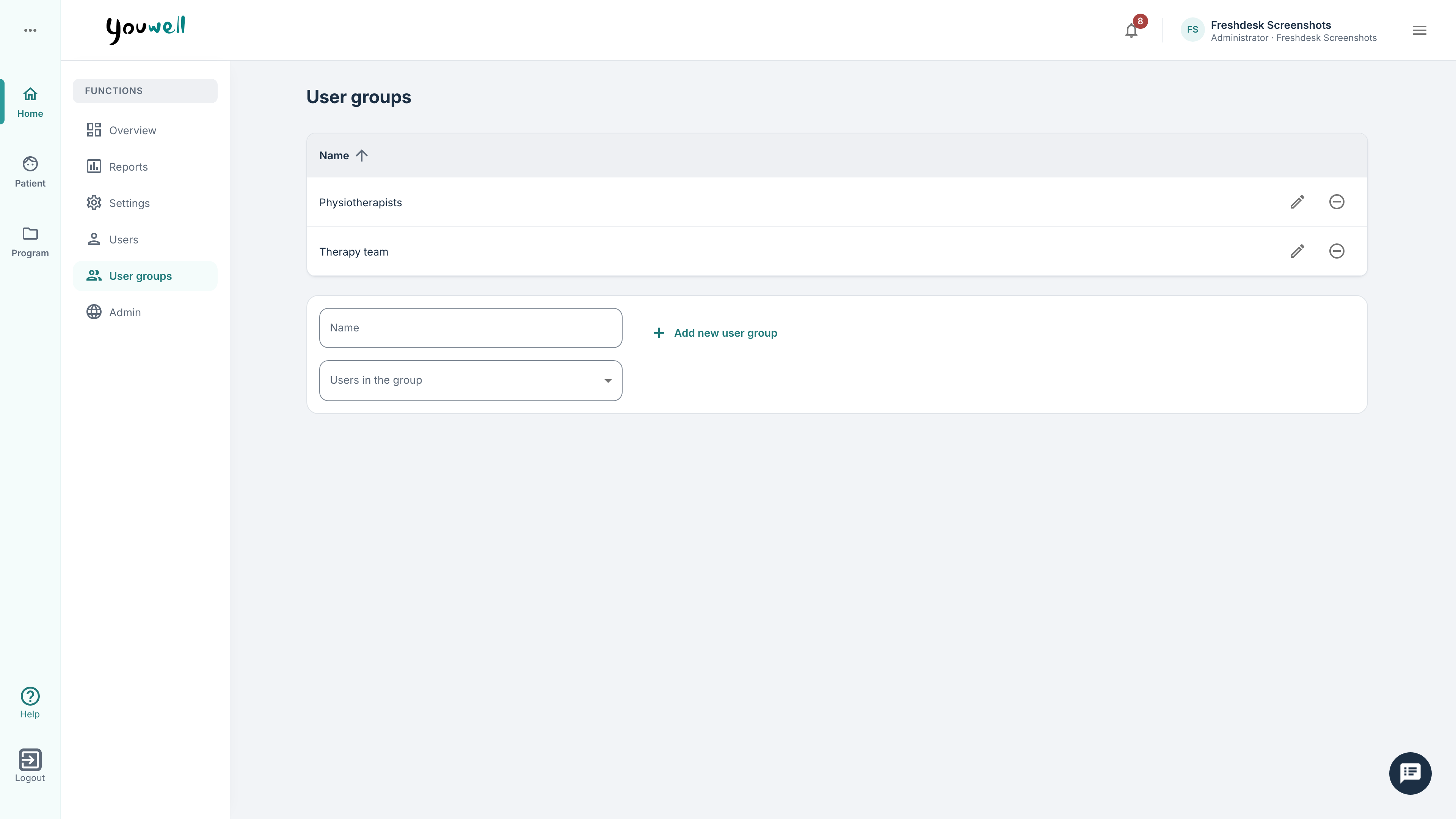
Creating a user group
To create a new group, you can add a Name in the field at the bottom, and then choose members from the Users in the group picker, which searches across all users in the organisation. Once you have selected all users, you can click + Add new user group.
Members can be added or removed at any time. Adding a member gives them visibility of every appointment already linked to the group; removing a member removes those appointments from their calendar view but does not cancel the appointments themselves.
Deleting a user group
Deleting a group does not delete the appointments linked to it. Existing appointments remain, but the group is no longer a valid audience for new appointments. Members also lose the access to patients that the group gave them. If the group is linked to patients, the confirmation says how many, so you can check before you continue.
A group cannot be deleted if a patient with an active programme would be left with no connected therapist. Connect another therapist or group to those patients first. Patients without an active programme are not checked.