
Under Messages on the patient page an overview is displayed of the communication and message dialogue between clinicians and the patient.
Messages Display
The clinician can see if the patient has opened and read the messages. Next to the clinician’s messages a single tick “✓” is shown when the message is confirmed sent and received, and double ticks “✓✓” when the message is read by the patient. It is also shown which clinician sent the message (which is useful when several clinicians follow up the same patient), as well as when the message was opened by the patient.
Using the Show menu beneath the message input box allows the clinician to filter the type of message they wish to see here, for example, if they want to temporarily hide any scheduled messages from the view.
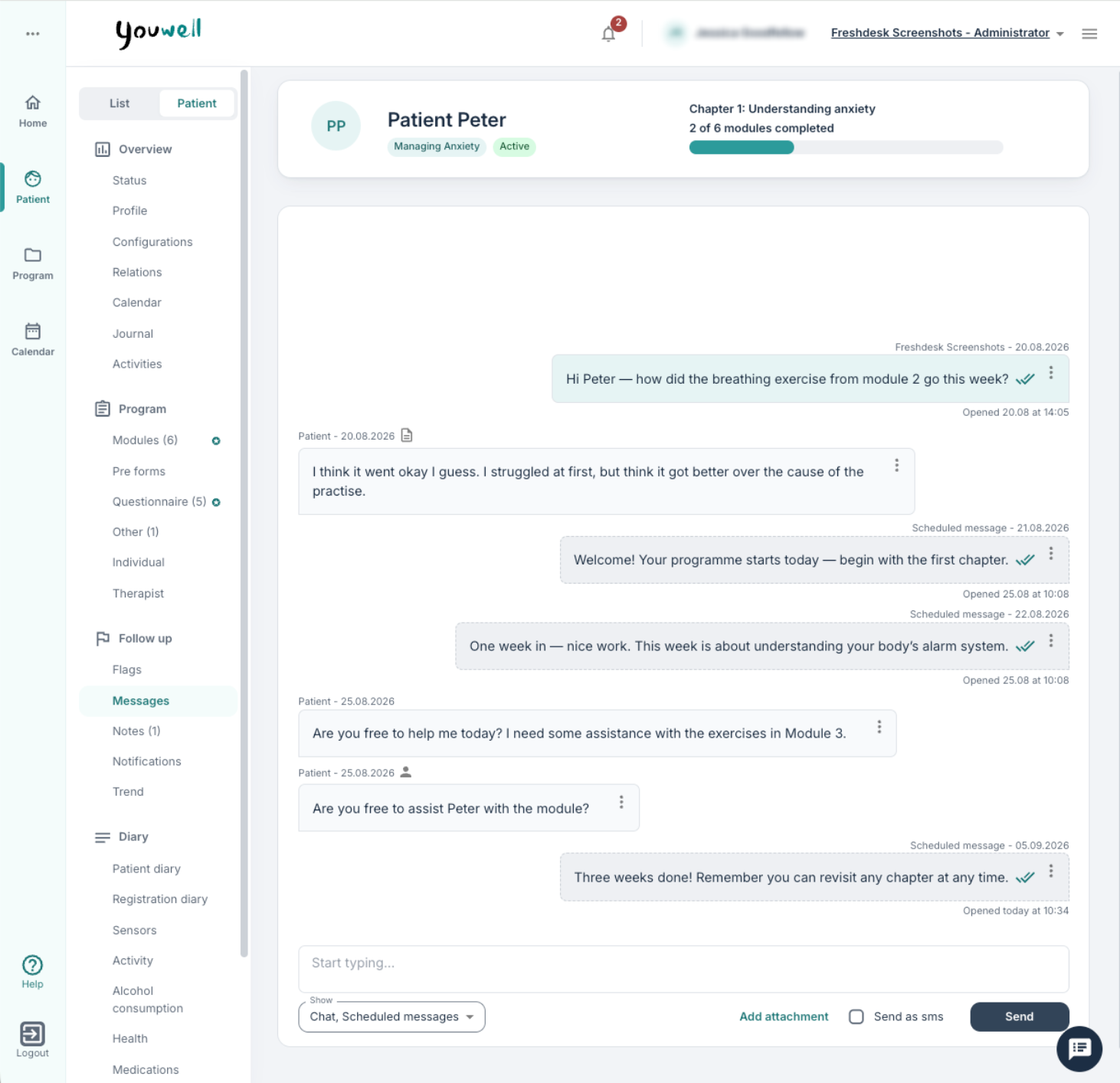
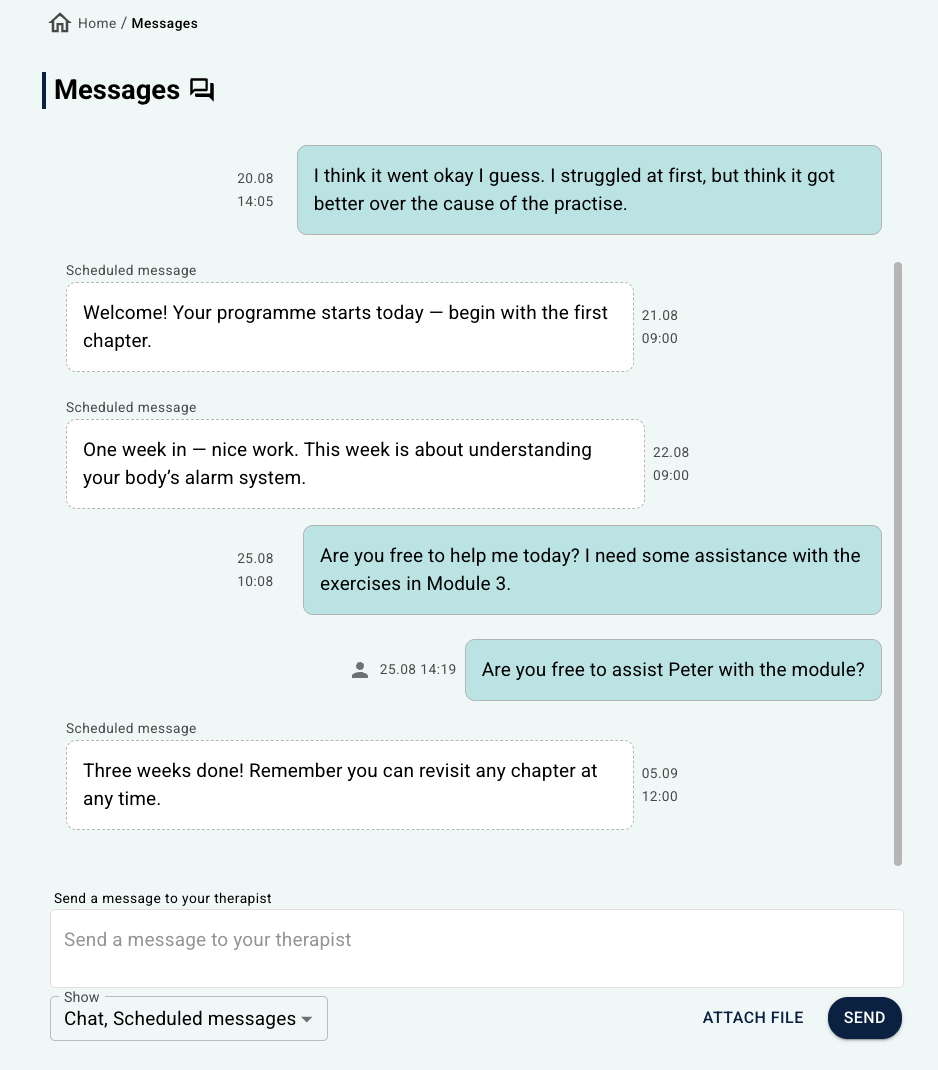
Display of the earlier patient application design, implemented pre-2026
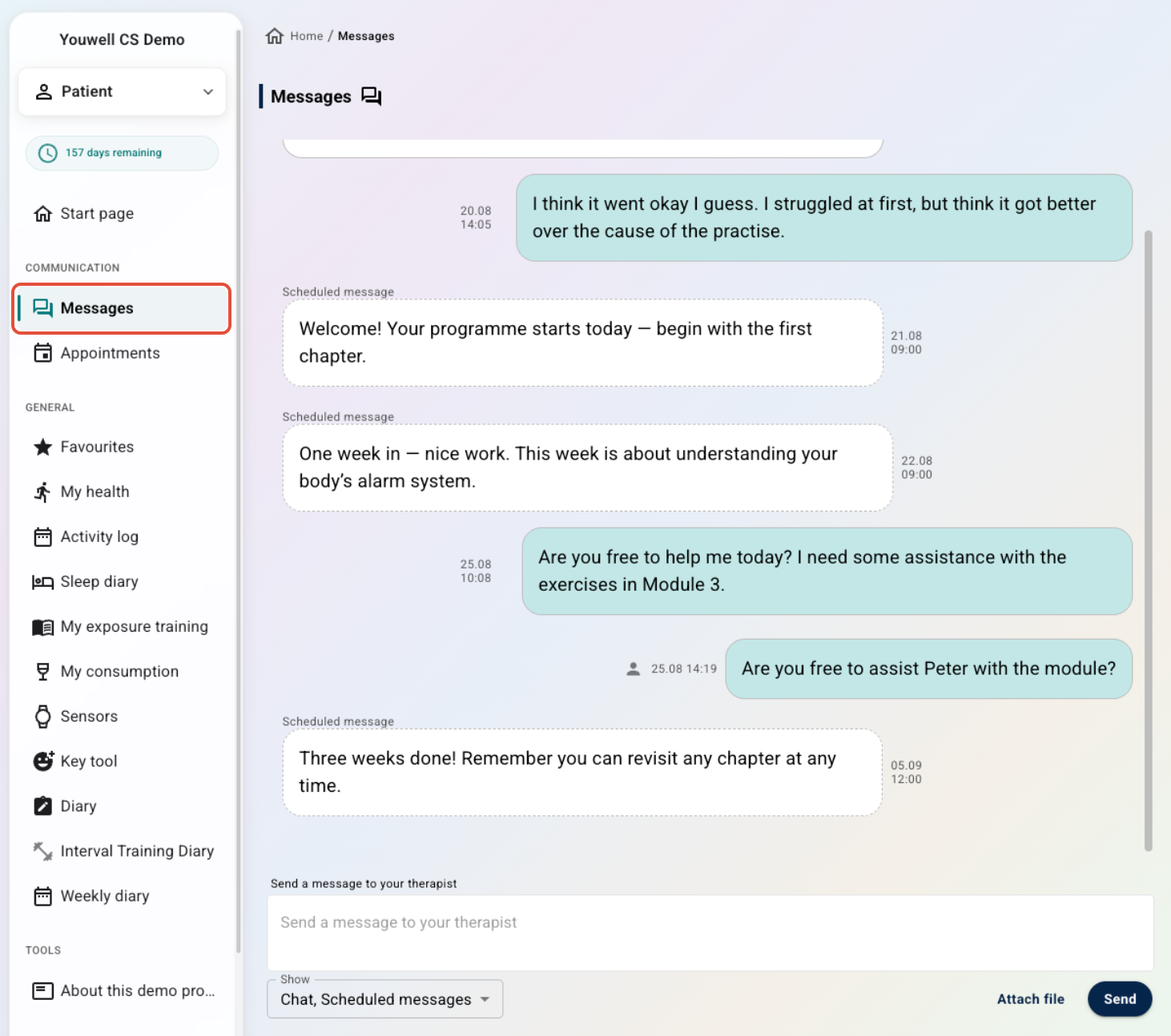
Display of the new patient application design, implemented from 2026
The display is almost identical for the patient and for the clinician, as illustrated in the images above. The clinician can enter text with rich formatting, include videos, links, images and attach files.
The patient has a slightly simpler view where they can enter plain text and send attachments, unless attachments have been turned off for the organisation, programme, programme profile or patient (the setting Turn off attachments in messages). The patient sees the time when messages were sent, and from which clinician. If a relation has written a message, an icon of a person will be shown next to the message.
Actions on Messages
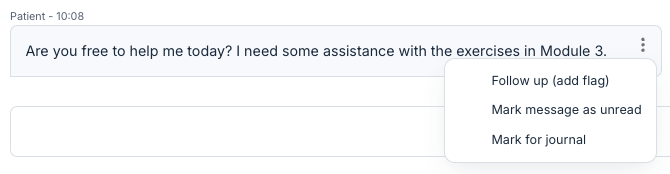
The therapist has the possibility, using the menu next to each patient message, to:
- highlight the message for follow up, which creates a flag that can be used for following up; messages highlighted in this way get a yellow flag on the Flags page.
- mark the message as unread, which changes the status to "not read" so that it is possible to return to it later.
- mark as journal-worthy, relevant if the Journal function is used and it is appropriate to include the message in the PDF summary that is sent to the journal.
- delete their own message, which means that the patient no longer sees the message, but a Message deleted text instead. In the portal the deleted message stays visible, struck through, so that the clinicians can see what was sent.
- Delete message on a message the patient sent, if your organisation allows it (see below).
Deleting messages sent by the patient
Your organisation decides whether messages a patient has sent in the chat can be deleted, and by whom. An administrator sets this with Who can delete messages sent by the patient under Youwell settings in Settings:
- Nobody — messages from patients cannot be deleted. This is the default.
- Therapist — therapists can delete messages patients have sent.
- Patient (own messages) — patients can delete messages they have sent themselves.
- Therapist and patient — both.
When a therapist selects Delete message on a patient's message, they are asked to confirm, because the message and any attachment are permanently erased and this cannot be undone. The confirm button is Delete permanently.
A deleted message is removed completely, including any attached file. The conversation, and the journal PDF, show a timestamped Message deleted entry in its place, without the text.
 The setting in the portal.
Chat Popup Window
The message icon bottom right in the platform opens the chat tool where it is possible to see messages from various patients.
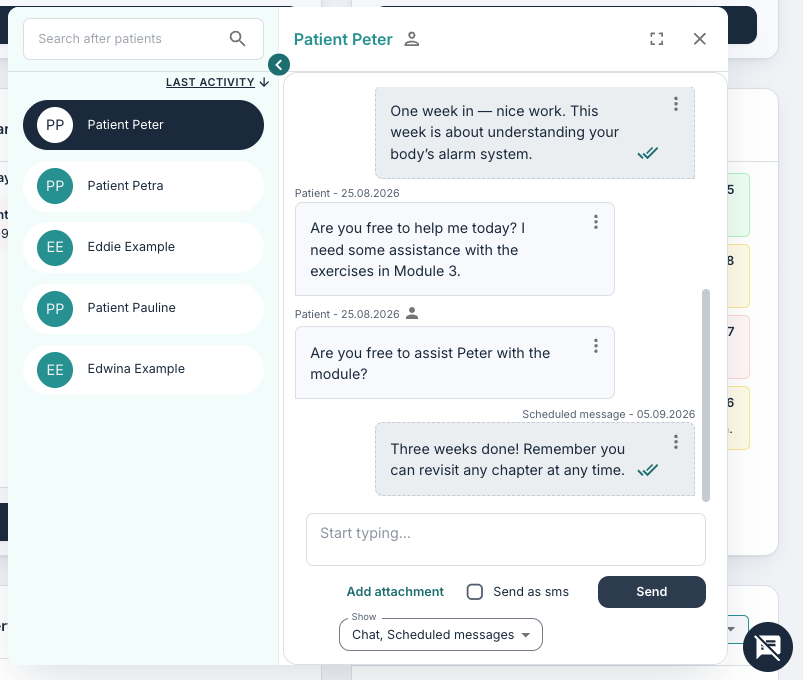
This shortcut gives the clinician access to messages without having to navigate via the patient page each time.